
Last Updated: April 2026
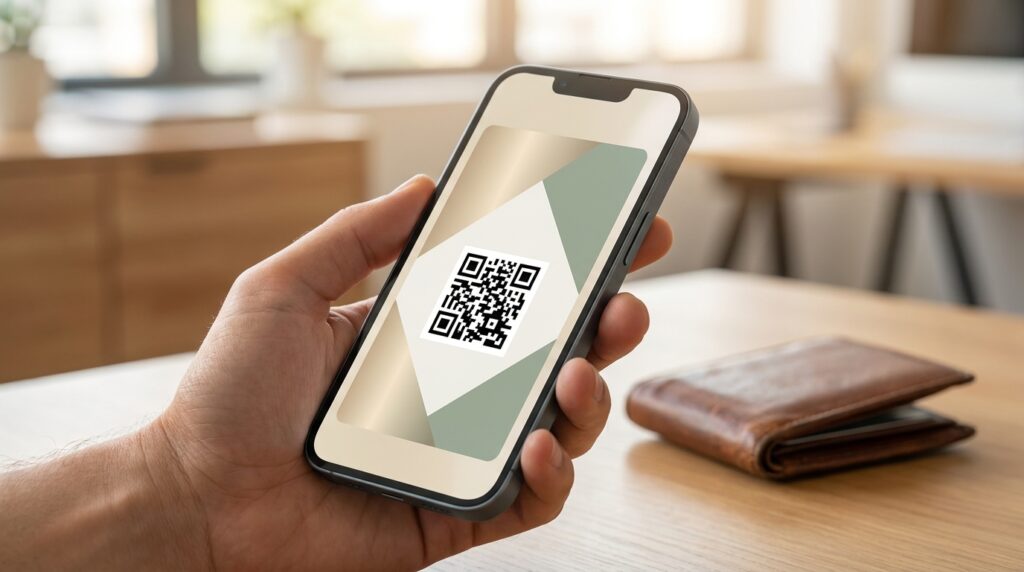
Digital membership cards let your members carry their credentials on their phone: no printing, no mailing, no replacement cards when someone loses theirs. This guide walks through every step of creating and delivering digital membership cards, including the Apple Wallet and Google Wallet delivery flow that most how-to articles skip. You will also find a troubleshooting section covering the adoption problems organizations most often encounter after launch.
What Are Digital Membership Cards?
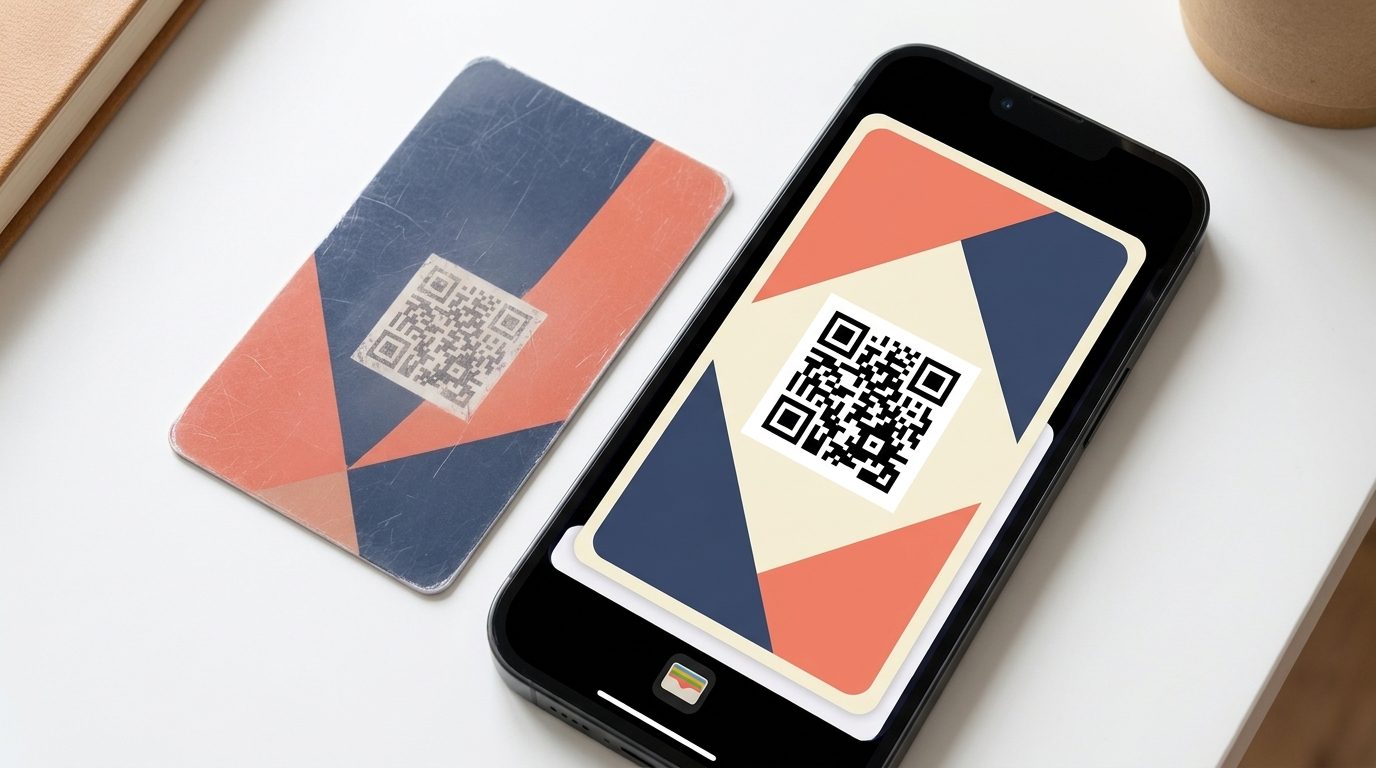
A digital membership card is a credential stored on a member’s phone that confirms their active status with your organization. It typically shows the member’s name, a unique ID, membership tier, and expiration date. Organizations can deliver them as Apple Wallet or Google Wallet passes, as QR-code PDFs, or as a badge visible inside a member portal.
The most practical format for most organizations is the wallet pass. Left Handed Giant, a craft beer community, switched to digital passes precisely because members always have their phone when they arrive at taproom events, so “no card, no entry” becomes a much smaller logistical problem. Wallet passes also update in real time when a membership renews, which eliminates the reprinting cycle entirely.
If you are still deciding between physical and digital cards, see our guide to physical vs. digital membership cards before continuing. For a broader foundation on card types and terminology, the membership card basics guide covers the groundwork.
What You Need Before You Start
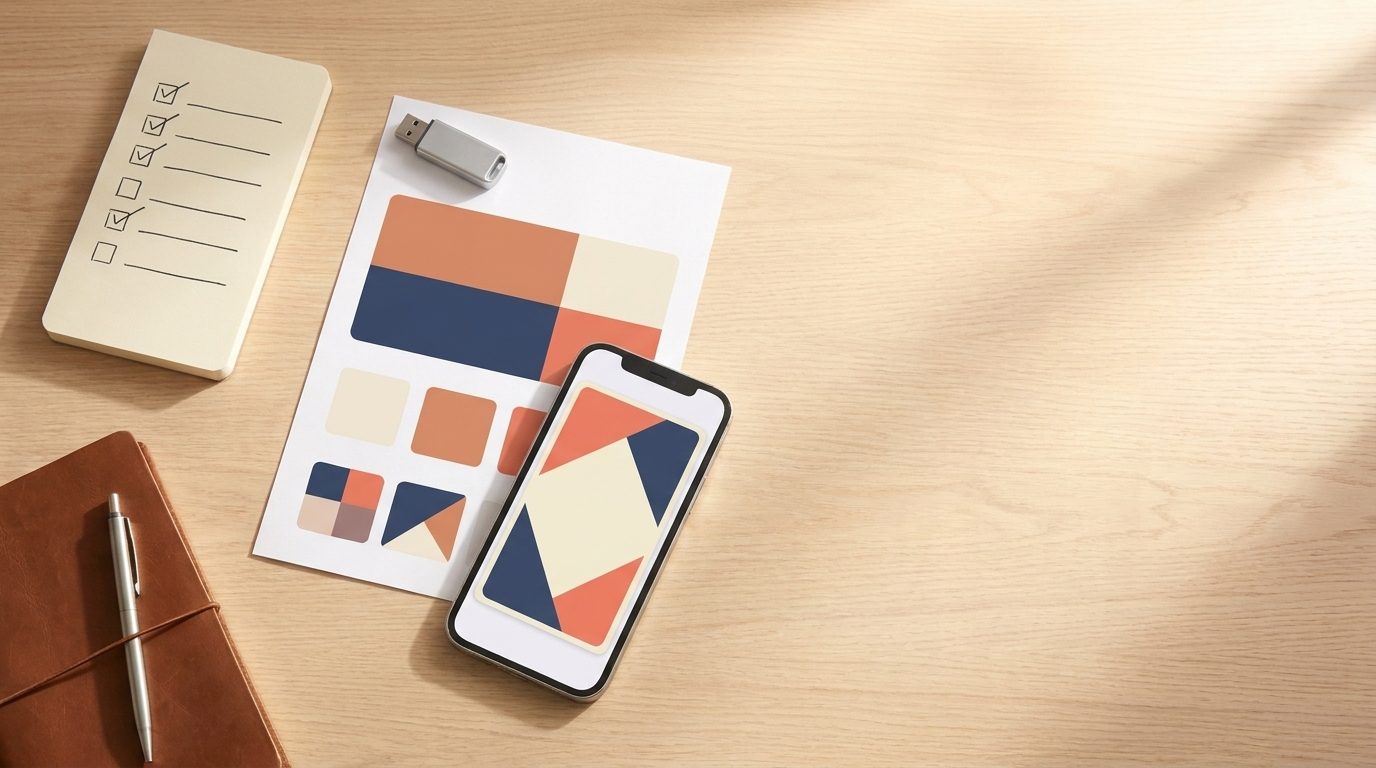
Before setting up your card template, have these ready:
- Membership management software that supports wallet pass generation. Not all platforms generate Apple Wallet (.pkpass) and Google Wallet passes natively. Confirm this before committing to a platform; asking for a sample pass during a trial is the fastest check.
- Your organization logo in SVG or high-resolution PNG. Wallet pass templates crop and resize logos automatically, so low-resolution files produce blurry results on retina screens.
- A defined set of fields for the card face. Decide now: name, member ID, tier, expiration date. Adding fields later requires regenerating every existing card.
- A verification URL for the QR code. The QR code on a digital membership card should encode a live URL that confirms active status when scanned, not static member data. Plan this URL structure before designing the card, because changing it later invalidates previously issued passes.
How to Create Digital Membership Cards: 5 Steps
Step 1: Design Your Card Template
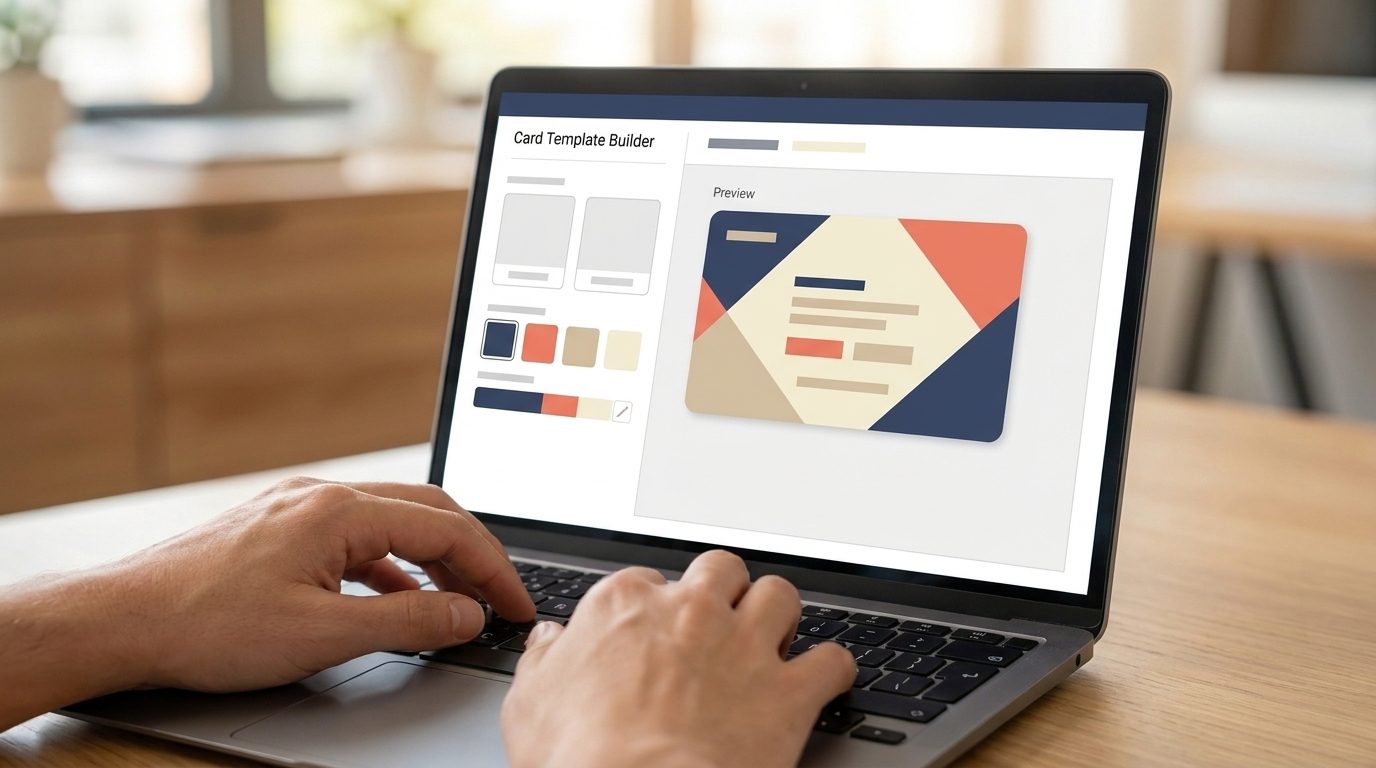
In Raklet, go to Memberships > Settings > Digital Card to open the card builder. The fields you configure here (logo, logo text, and text color) become the default template applied to every membership plan. If you run multiple membership tiers, you can override these defaults at the plan level, giving each tier its own color scheme while keeping the same logo and brand identity across all cards.
Keep the card face to three or four fields: name, member ID, tier, and expiration date are the standard set. Adding more fields clutters the card and makes it harder to scan at events. Place the QR code on the front face of the card; front placement lets venue staff scan without asking members to flip their phone.
Use your brand colors but verify contrast ratios. Apple Wallet renders pass backgrounds in exactly the color you specify, and a dark-on-dark combination will make the card effectively unreadable on older phone screens.
Step 2: Connect Your Membership Database
Link the card template to your membership records so cards generate automatically when a new member signs up or an existing member renews. Manual card creation becomes unmanageable once you have more than a few dozen members.
In Raklet, the card module reads directly from the membership record, so the fields you mapped in Step 1 (name, ID, tier, expiration) populate automatically from your member database. Test this by creating a test member record and confirming that a card is generated with the correct data before going live.
Step 3: Configure QR Code Type and Wallet Pass Settings
Two decisions need to happen in this step: what your QR code does when scanned, and how wallet pass delivery works.
QR code type. In Raklet, the QR code on every digital membership card can be configured to do one of three things, set under Memberships > Settings > Digital Card > Barcode Message Type:
- Launch Check-in: directs to the member’s check-in URL. Use this for event access control and attendance tracking. The QR code itself never changes; membership status is checked live when the code is scanned, so a renewed or expired status is reflected instantly without reissuing the card.
- Launch Profile: opens the member’s profile page. Useful when staff need quick access to member details (dietary preferences, emergency contacts, training notes) at the point of check-in.
- Return Contact ID: returns the member’s unique Contact ID as plain text. Used for custom integrations with third-party access control systems or CRM tools.
Most organizations use Launch Check-in. Choose Launch Profile if your front-desk workflow involves pulling up member records, or Return Contact ID only if you are connecting to an external system.
Wallet pass delivery. Raklet manages the Apple Wallet certificate and Google Wallet Passes API registration on your behalf, so you do not need an Apple Developer account or Google API credentials. When a member receives their card link and clicks it, they land on their membership page and can add the card to Apple Wallet or Google Wallet directly from there. Both wallet types support dynamic passes: once installed, the platform can push status updates to the card without the member reinstalling it. This is what makes renewal updates automatic in Step 5.
Step 4: Set Up Automated Delivery
Raklet delivers membership cards by email using a personalized shortcode. In any email template (welcome message, renewal confirmation, or a standalone card-delivery email), insert the shortcode |*VIEW_MEMBERSHIP_CARD_URL*| and Raklet replaces it with each recipient’s unique card link at send time. The link is valid for 72 hours after it is sent, after which members can request a new link from their membership page.
When a member clicks their link, they land on their personal membership page where they can add the card to Apple Wallet, add it to Google Wallet, or download it as an image. The page detects the device type and presents the appropriate wallet option prominently. Members who receive a generic link and have to figure out which format applies to their device are the members who never add the card at all.
Include a PDF download option on the same page. Members without a smartphone, or members on older devices that do not support wallet passes, can print the PDF and carry it physically. Offering no alternative for non-smartphone users is the most common reason organizations see low adoption rates in older member demographics.
Step 5: Verify Push Update Configuration
A digital card that shows an expired status after a member renews damages trust faster than any other membership experience failure. Before you go live, confirm that push updates are enabled so that when a membership renews in your database, the card already on the member’s phone updates automatically.
This requires your platform to maintain a push connection to Apple’s and Google’s pass update infrastructure. The configuration is typically a toggle in platform settings, but it requires the Apple Developer certificate (from Step 3) to be active and valid. Certificates expire annually. Set a calendar reminder to renew the certificate at least two weeks before expiration, or every card in circulation stops updating until it is renewed.
Troubleshooting Common Digital Card Adoption Problems
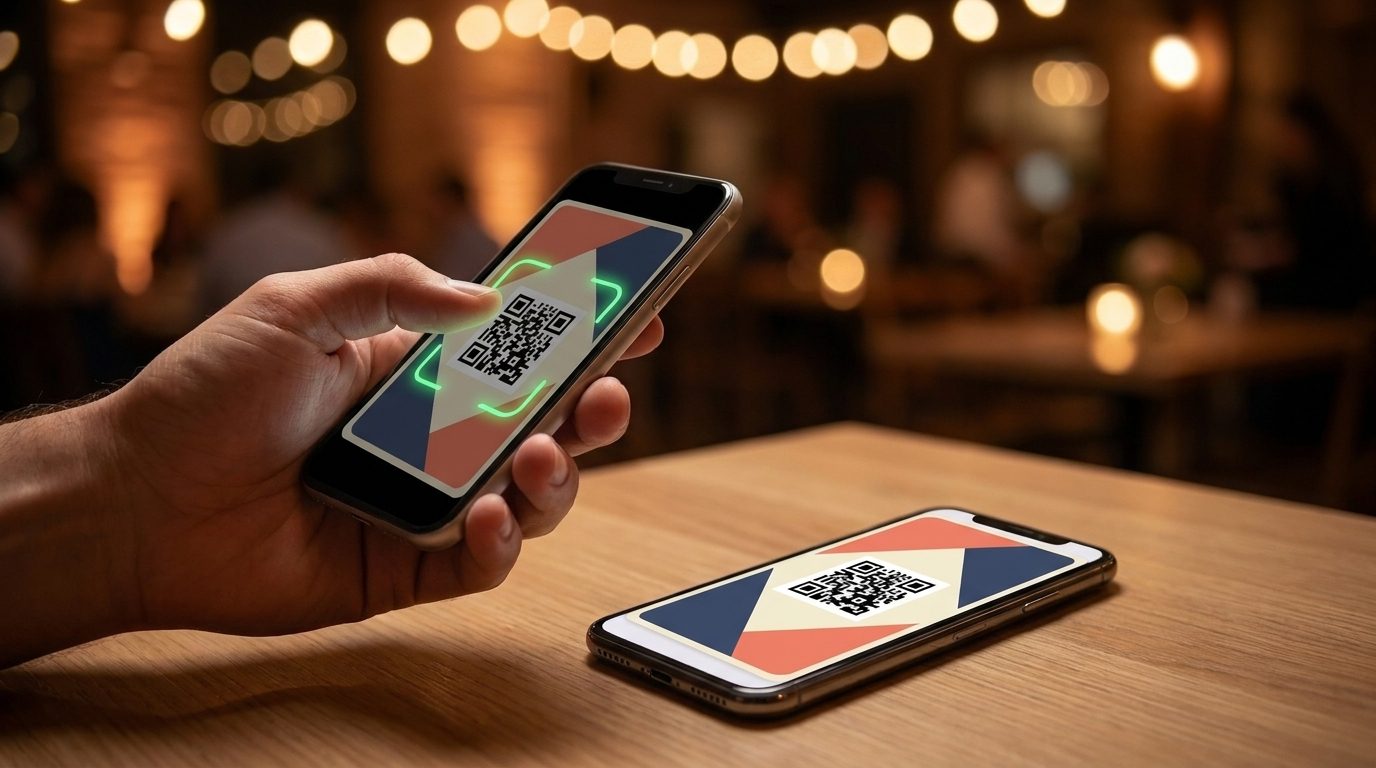
Four problems come up repeatedly after organizations launch digital cards.
Members are not adding the card to their wallet. The most common cause is that the delivery email arrives and gets ignored or filtered to spam before the member opens it. Fix: add a one-click installation link directly to your welcome email and to the confirmation email after renewal. Do not rely on a separate “here is your card” message that arrives days later.
Older members do not have smartphones. Do not skip the PDF fallback. Send the PDF automatically alongside the wallet links, clearly labeled as the print option. Members who see both options choose the one that fits their situation. Members who only see a wallet link assume they cannot participate.
Scanners at events are not reading QR codes. Admins scan cards using the Raklet mobile app (or your organization’s branded app if you have one), not a generic QR reader. The app runs on any current iOS or Android smartphone. Make sure your front-door staff are logged in as admins before the event starts, and that they have camera permission enabled. Screen brightness also matters: a member’s phone at 20% brightness in a dark venue will fail to scan reliably. Brief staff to ask members to turn up brightness before retrying. If the scan succeeds but the system shows an error, check that you are using the correct QR code type for your event (Launch Check-in, not Launch Profile).
Cards show expired even after a membership renews. This is almost always a push update configuration problem. Check that the Apple Developer certificate in your platform settings is current. Check that the platform’s push update feature is enabled (it is sometimes a separate add-on). If the certificate is valid and push is enabled but updates still are not reaching members, contact your platform’s support team with the specific member’s pass ID and renewal timestamp. Most platforms can trigger a manual push update while you investigate the root cause.
Digital Membership Card Design Best Practices
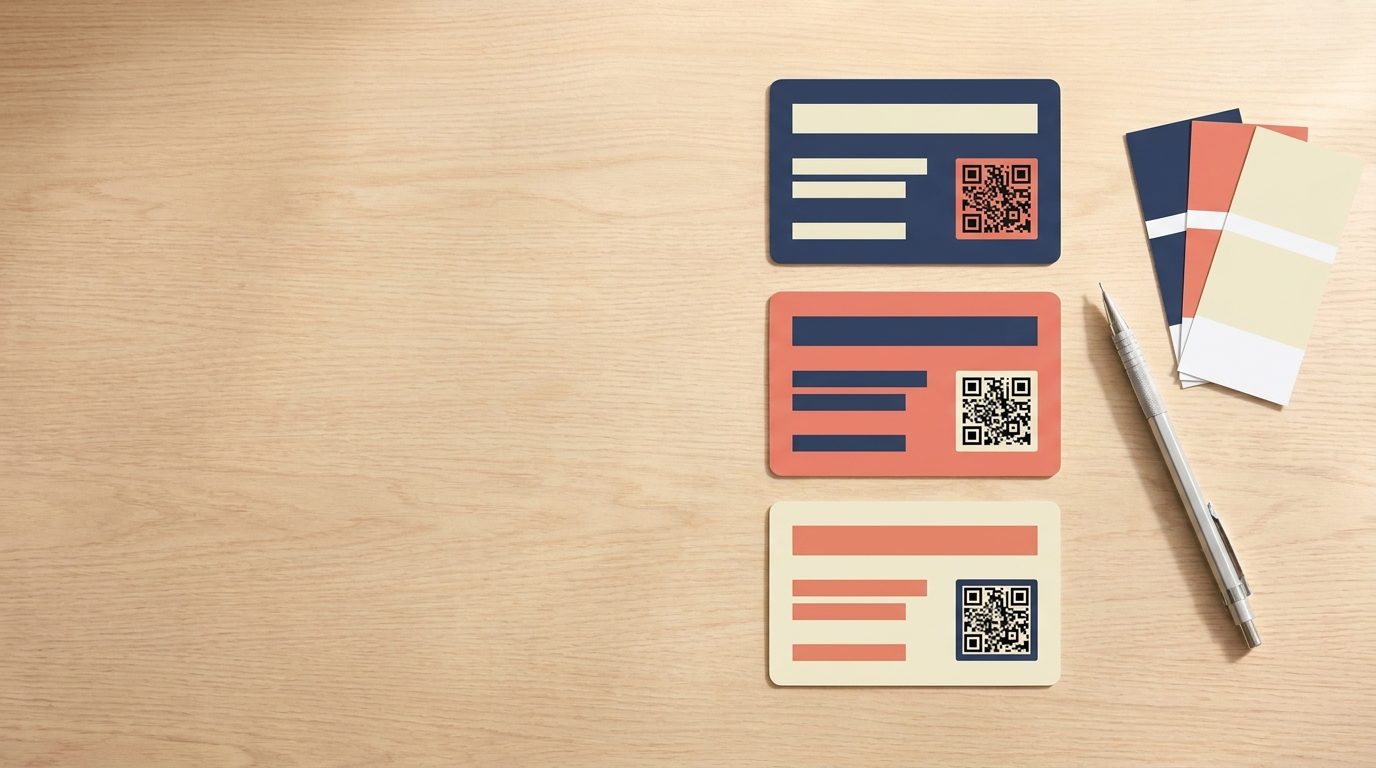
Design affects both usability and member perception. These guidelines reduce the most common card design problems.
Limit the card face to four fields maximum. Wallet passes are small. Name, member ID, tier, and expiration date are enough. Phone number, address, or email fields clutter the card without adding value at the point of verification.
Use brand colors, but verify contrast. Apple Wallet renders your chosen background color exactly. Test your card on a physical phone at both high and low brightness before finalizing. The minimum accessible contrast ratio for text on a colored background is 4.5:1.
Make your organization name and logo prominent. Members should be able to identify the issuing organization at a glance. Logo placement at the top-left is standard for wallet passes. If your logo is primarily white or light-colored, add a dark background strip behind it rather than placing it directly on a light card background.
Choose the right QR code type for your use case. In Raklet, the QR code on every card always points to a live page; the code itself never changes, but what it displays depends on which barcode message type you have selected. Launch Check-in is the right default for most organizations: it hits a live check-in URL so any change in membership status (renewal, expiration, cancellation) is reflected immediately when the code is scanned, without reissuing cards. This is also what makes digital cards more resistant to sharing than physical cards: a screenshot of the QR code will still scan, but the live check-in page will show the correct active or expired status for that specific member.
Well-designed membership cards also play a role beyond access control. Our guide on how membership cards increase member loyalty and engagement covers why members who carry a visible credential tend to self-identify more strongly with the organization and participate more actively.
Frequently Asked Questions
Can members add their card to Apple Wallet?
Yes, if your membership platform generates .pkpass files that meet Apple’s developer specifications. The member receives a link in their email, taps “Add to Apple Wallet,” and the pass installs on their iPhone in a few seconds. Passes require a valid Apple Developer certificate on the platform side; without it, the installation will fail on iOS.
How do I update cards when memberships renew?
Dynamic wallet passes update automatically when your platform pushes an update to the installed pass. The member does not need to reinstall the card. This requires push updates to be enabled on your platform and an active Apple Developer certificate for Apple Wallet passes. If a renewed member’s card still shows as expired, check the certificate expiry date in your platform settings first.
Do digital membership cards work offline?
Yes. Once a wallet pass is installed, it displays without an internet connection. The member can show the card at an event even with no signal. Verification, however, requires a connection: the QR code scans a live URL to confirm active status, so the scanner device needs to be online. Most venue setups have Wi-Fi for this reason.
Can a digital membership card be copied or faked?
Digital membership cards are harder to copy than physical ones. A screenshot of a wallet pass looks identical to the real pass, but when scanned the QR code hits a live check-in page that reflects the member’s current status. If a membership is cancelled or expired, the check-in page shows that immediately regardless of how the QR code was obtained. In Raklet, the QR code itself never changes, which means you do not need to reissue cards to close a security gap; the live page does the verification work.
What is the difference between a digital membership card and a digital membership?
A digital membership card is the credential that confirms an active membership. A digital membership is the membership itself, which may include access to a member portal, online community, gated content, or event registration. The card proves the status; the membership defines what that status unlocks.
How do I create digital membership cards without technical skills?
Most modern membership platforms handle the technical configuration: they manage the Apple Developer certificate, generate the wallet pass files, and deliver them automatically by email. Your role is selecting your fields, uploading your logo, and choosing your colors. Connecting the card template to your membership database typically takes less than an hour in platforms designed for non-technical administrators.
How much do digital membership cards cost?
Pricing varies widely by platform and volume. Dedicated pass platforms typically charge by the number of active passes per month, starting around $40 per month for a few hundred passes. Membership management platforms that include digital cards as a built-in feature usually fold the cost into the membership software subscription rather than charging per pass. Calculating total cost on a per-member basis across a year is the most reliable comparison point when evaluating options.
Start Creating Digital Membership Cards with Raklet
Raklet’s built-in digital membership card tools handle Apple Wallet and Google Wallet pass generation, automated delivery on signup and renewal, and real-time push updates when membership status changes, all without a developer on your team. If you want to see how card setup and delivery work for your specific use case, book a demo and we will walk through it with you.