
WordPress powers roughly 43% of all websites on the internet (W3Techs, 2024), so it’s no surprise that many people reach for it when building a membership site. The platform is flexible, well-documented, and has a mature plugin ecosystem. But flexible doesn’t always mean the right fit. This guide covers what’s involved in setting up a WordPress membership site, what it will cost you, and where most people run into trouble. It also covers the scenarios where WordPress isn’t the best starting point.
- WordPress membership sites typically cost $15-65/month in ongoing hosting and plugin fees
- Plugin conflicts, renewal management, and reporting gaps are the three most predictable pain points
- WordPress is a strong fit for content creators and bloggers; it’s often a poor fit for associations, nonprofits, and organizations where member management matters more than content gating
- Setup takes 6 steps: host, plugin, tiers, payment, content gating, and onboarding emails
- If your membership involves events, directories, or dues management, a dedicated platform is usually simpler
What Is a WordPress Membership Site?
A membership site built on WordPress is a standard installation extended with a plugin that gates content behind a paywall or member login. Membership plugins handle member registration, subscription billing, and content restrictions. Without one, WordPress has no built-in concept of paid members or content-gated access. MemberPress alone reports tens of thousands of active installs across courses, newsletters, and community spaces.
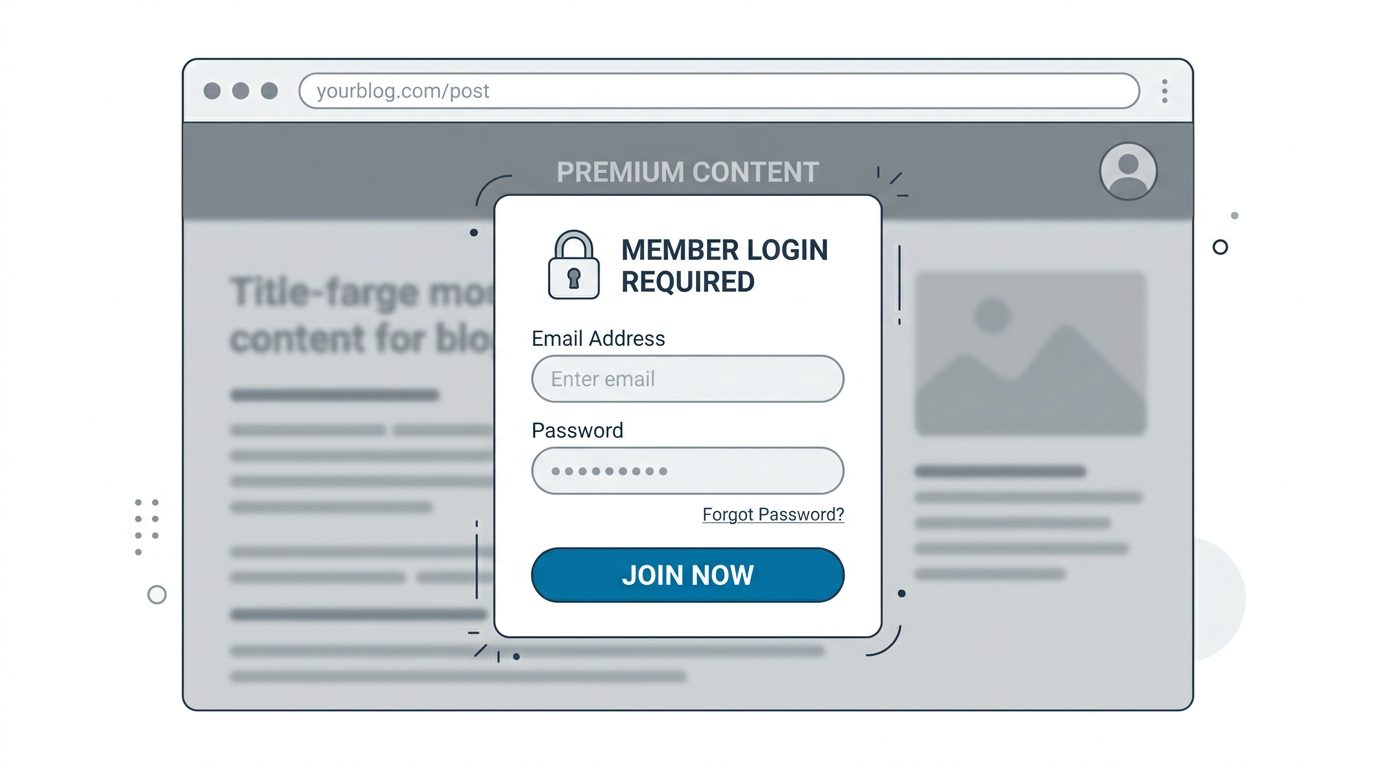
Content gating is the core feature: you choose which posts, pages, or file downloads are visible only to paying or registered members. Most membership plugins also support drip content, which releases material on a schedule after signup rather than all at once. This works well for courses, serial publications, and programs with a defined learning path.
Who is this a good fit for? Bloggers and content creators who sell exclusive articles, newsletters, or video access. Online course creators who already have a WordPress site. Small organizations that run their main website on WordPress and want to add a member-only section without switching platforms.
Who should think twice? Organizations where membership management, such as renewals, event registration, a member directory, and committee communication, is more important than controlling what content people can see. For those groups, a content-gating plugin is only a partial solution.
What Do You Need to Build a WordPress Membership Site?
Building this type of site has four moving parts: hosting, a membership plugin, a payment gateway, and an email service. Hosting typically runs $5-30/month depending on your provider and traffic needs, while plugins range from free to $399/year for premium tiers. Add it up and most operators pay $15-65/month in ongoing costs once everything is running.
Hosting
You need a WordPress-compatible host. Shared hosting from providers like Bluehost or SiteGround starts around $5/month and handles most early-stage membership sites. Managed WordPress hosting from WP Engine runs closer to $20-30/month and is worth it once you have paying members who expect reliable uptime. Membership sites with active payment processing have less tolerance for downtime than a simple blog.
Membership Plugin
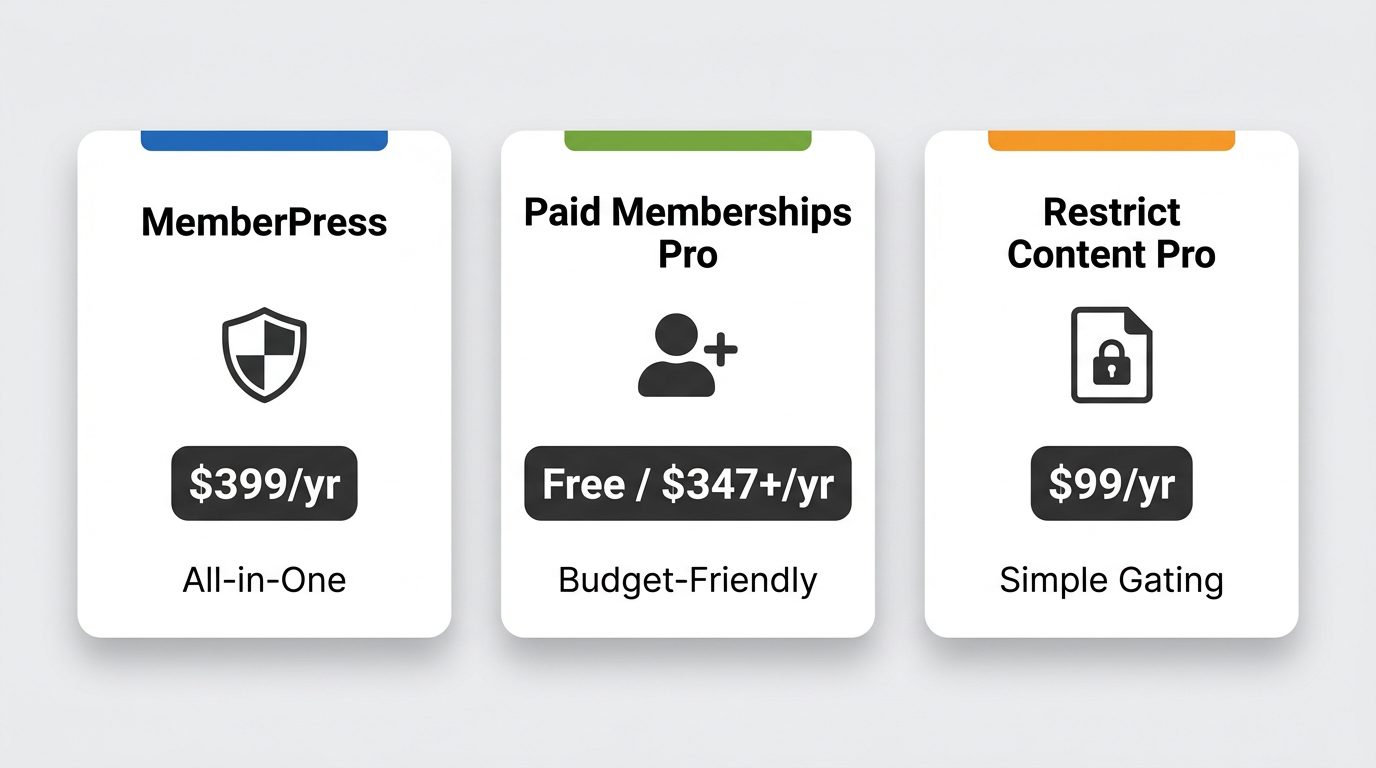
The plugin does the heavy lifting: member registration, access rules, subscription billing, and payment receipts. Three options cover the majority of straightforward use cases:
- MemberPress – starts at $199.50/year (introductory rate; renews at $399/year). Widely used, well-supported, and integrates with most popular WordPress page builders.
- Paid Memberships Pro – free core plugin with a $399/year paid tier for advanced features. Good option if you want to start without an upfront commitment.
- Restrict Content Pro – $99-249/year. Simpler feature set; often preferred for straightforward content gating without added complexity.
| Plugin | Price | Best For |
|---|---|---|
| MemberPress | $199.50/year intro; $399/year renewal | All-in-one: courses, content, subscriptions |
| Paid Memberships Pro | Free core; $399/year paid | Starting without upfront cost |
| Restrict Content Pro | $99–$249/year | Simple content gating, less complexity |
For a full comparison of these and other options, see our guide to WordPress membership plugins. That article covers feature-by-feature breakdowns and is worth reading before you commit to one.
Payment Gateway and Email
Most membership plugins connect natively to Stripe and PayPal. Stripe is generally the cleaner integration and handles subscription billing, failed payment retries, and card updates without custom code. PayPal works but adds more friction at checkout. For email, you’ll need a service like Mailchimp or ConvertKit for welcome sequences, renewal reminders, and member communication. Most plugins include basic transactional emails but not a full email marketing workflow.
Step-by-Step: Setting Up a WordPress Membership Site
Setup follows a predictable sequence. Skipping steps, particularly testing payment processing before going live, is where most launches go sideways. Plan for 4-8 hours of hands-on configuration if you’ve used WordPress before, longer if you haven’t.
Step 1: Choose a Host and Install WordPress
Pick a host, register a domain, and install WordPress. Most hosts offer one-click WordPress installs. Use a reputable managed host from the start if you’ll be handling payment data. Security and uptime matter more for membership sites than for brochure pages.
Step 2: Install and Configure a Membership Plugin
Install your chosen plugin from the WordPress plugin directory or by uploading a zip from the vendor. Run the setup wizard, which most modern plugins include. Connect your payment gateway credentials during setup, not after. Postponing payment configuration often means you’ll forget a setting that breaks checkout at launch.
Step 3: Create Membership Tiers and Pricing
Define your membership levels: names, prices, billing intervals (monthly, annual, or one-time), and any trial periods. Start with fewer tiers than you think you need. Two or three options convert better than a menu of five. You can add tiers later; removing them after members have signed up is messier.
Step 4: Connect Your Payment Gateway
Complete the payment gateway connection and run a test transaction using a test card before you publish anything. Stripe’s test mode makes this easy. Confirm the webhook between Stripe (or PayPal) and your plugin is working. This webhook tells WordPress to activate or expire a membership after payment events. If it breaks, members lose access without warning.
Step 5: Gate Your Content
Apply membership restrictions to the pages, posts, categories, or file downloads you want to protect. Most plugins let you set access rules globally (for example, all posts tagged “member-only”) or individually. Test access as a non-member and as a member at each tier before going live. It’s common to discover a page that should be gated but isn’t, or vice versa.
Step 6: Set Up Welcome Emails and Member Onboarding
Configure your transactional emails: welcome message, payment confirmation, and failed payment notice at minimum. A short welcome sequence, even two or three emails over the first week, improves early retention. Most membership plugins handle the trigger (signup event) but you’ll route the actual email through your email service provider for formatting and tracking.
The 3 Most Common Failures With WordPress Membership Sites
These aren’t reasons to avoid WordPress. They are predictable problems that show up reliably enough that you should plan for them in advance. Knowing they exist makes them manageable. Being surprised by them at 3 AM with a broken checkout page is a different experience entirely.
Plugin conflicts are among the most frequently reported causes of site outages in the first year of operation, based on patterns visible across MemberPress, Paid Memberships Pro, and Restrict Content Pro support forums. The two other predictable failure points — renewal gaps and reporting blind spots — tend to surface later but cause bigger problems when they do.
Plugin Conflicts
WordPress runs on plugins. Membership plugins, WooCommerce, caching plugins, and page builders all interact with WordPress core in ways that sometimes conflict. A caching plugin that aggressively stores pages can serve a cached “not a member” page to someone who just paid. WooCommerce Memberships is a separate product designed for stores; installing both WooCommerce and a standalone membership plugin can create redundant or conflicting access rules. Testing on a staging environment before pushing updates is not optional once you have paying members.
Renewal Management
Most WordPress membership plugins handle the technical side of renewals: they send a reminder email, attempt to charge the stored card, and either extend or expire the membership based on the result. What they don’t handle is the member lifecycle around renewals. Win-back sequences for lapsed members, targeted re-engagement for members who cancelled voluntarily, and segmented communication based on membership tier all require a dedicated email tool or custom development. For many organizations, this gap only becomes visible after their first renewal cycle, when churn is already happening.
Reporting Gaps
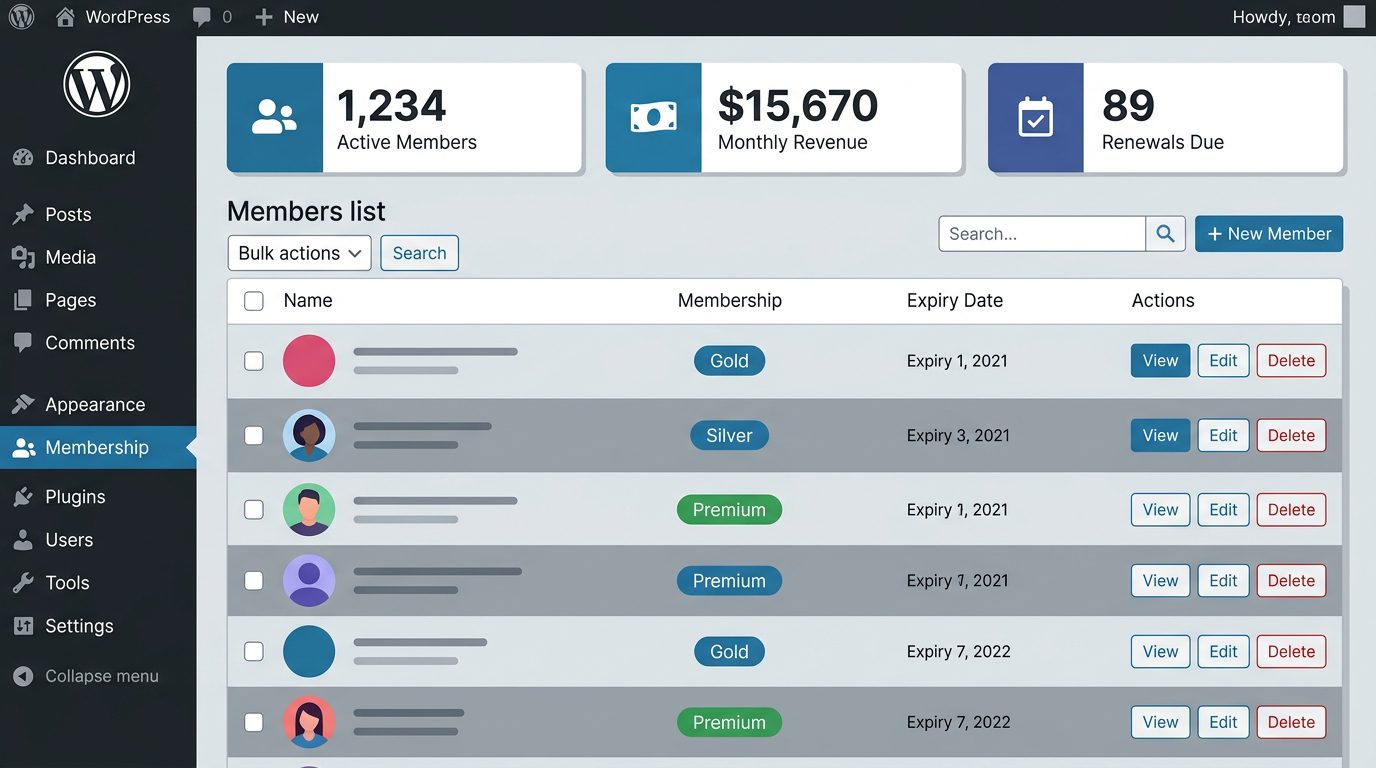
Membership analytics in WordPress plugins is basic. You’ll see total active members, revenue totals, and sometimes a simple churn rate. Cohort analysis, which tells you how well members who joined in a given month are retained three or six months later, is typically not available. Upgrade/downgrade tracking and lifetime value by acquisition source are also missing. If your business decisions depend on this data, you’ll need to export to a spreadsheet or connect a third-party analytics tool.
Organizations that switch from WordPress membership plugins to dedicated platforms frequently cite the reporting gap as a trigger, often more than the initial setup complexity. By the time reporting limitations become obvious, the workarounds are already costing hours per month.
When Does a Dedicated Membership Platform Make More Sense?
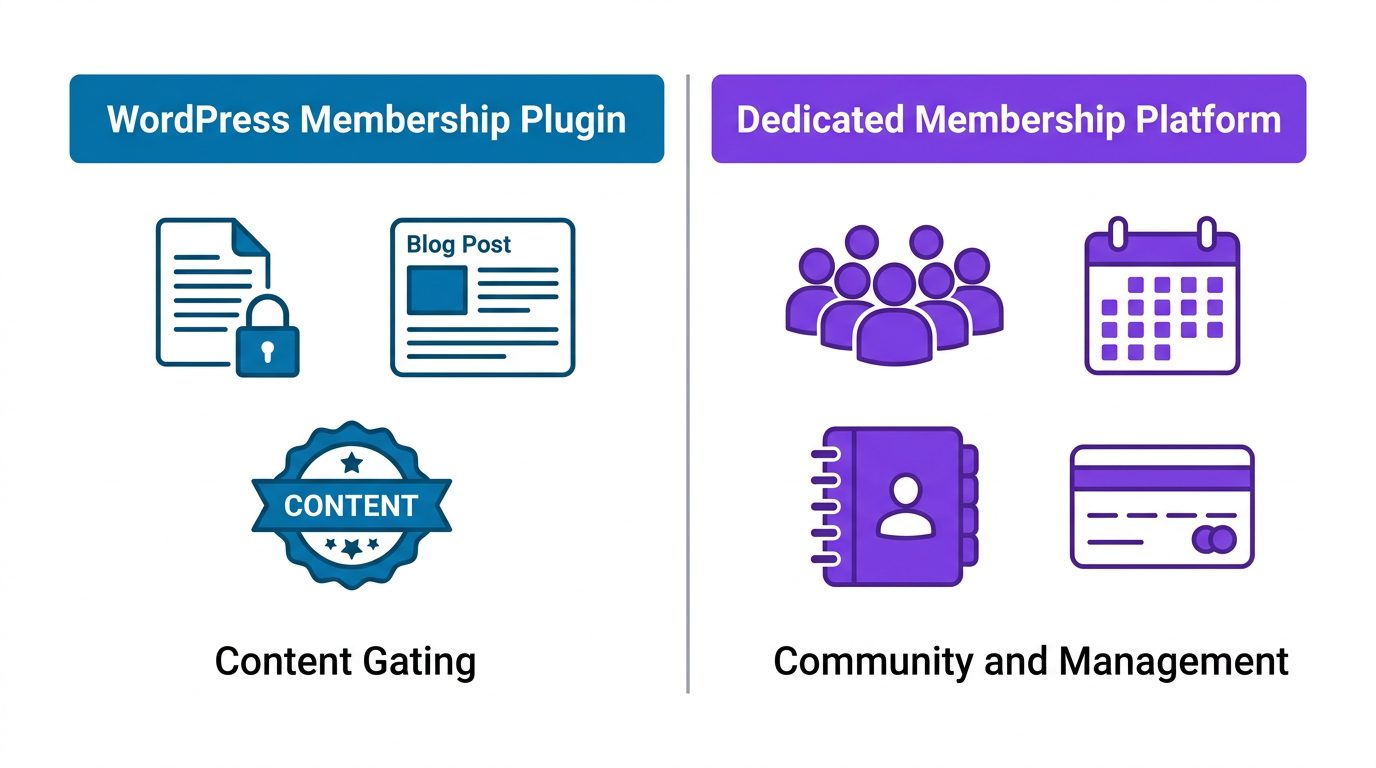
WordPress membership plugins are built around one core idea: controlling who can see your content. That’s the right tool if content access is your primary product. But many organizations call their program a “membership” when what they run is a community, an association, or a dues-based organization where content is secondary to events, directories, and communication.
Consider a dedicated platform if any of these apply to your situation:
- Your membership program involves events, committee management, a member directory, or dues processing beyond a simple subscription.
- Members need self-service access: updating their own profiles, downloading membership cards, registering for events, or renewing without contacting an admin.
- You need member engagement tools, such as direct messaging, announcements, or community features, not content restrictions alone.
- You’re managing members for a nonprofit or association. The requirements for membership management software for nonprofits tend to include features that few WordPress plugins cover cleanly without custom configuration or multiple integrations.
- You’re not technical, and spending time on WordPress maintenance, plugin updates, and conflict debugging pulls you away from the actual work your organization does.
The organizations most often caught off guard by WordPress limitations are not the ones who built simple content subscription sites. They’re associations and nonprofits who chose WordPress because it felt familiar, then discovered that “content gating” and “membership management” describe fundamentally different software problems. One controls what people can read; the other manages who those people are and how they engage with your organization over time.
If your membership is primarily about community, dues, and organizational services rather than exclusive digital content, a purpose-built solution will save you time and avoid rework. Explore what dedicated membership management software covers compared to a plugin-based approach before committing to WordPress for this use case.
WordPress Membership Site FAQ
How much does a WordPress membership site cost?
Most setups cost $15-65/month in ongoing fees. Hosting runs $5-30/month depending on your provider. Membership plugins range from free (Paid Memberships Pro core) to $399/year for MemberPress, which works out to about $33/month. Payment processing adds roughly 2.9% plus $0.30 per transaction through Stripe or PayPal. A basic setup is affordable; costs scale with traffic and the level of plugin support you need.
What is the best free WordPress membership plugin?
Paid Memberships Pro offers the most complete free tier among the major options. The core plugin handles member registration, multiple membership levels, and basic content restrictions without payment. WooCommerce with its free Memberships integration is another option if you’re already running an online store. Keep in mind that “free” typically means limited payment options, no priority support, and fewer integrations. If you’re exploring cost-free tools more broadly, there are also free membership management software alternatives worth comparing before you commit to any platform.
Can I sell memberships on WordPress without a plugin?
Technically yes, but it’s rarely practical. WordPress has no built-in access control for paid subscriptions. You could use a third-party service like Stripe’s customer portal and manually grant access by user role, but this requires custom code and breaks the moment you need to automate renewals or content rules. For any paid membership program, a dedicated plugin is the practical standard. The only common exception is using a hosted LMS platform with its own membership system embedded on a WordPress page.
What is the difference between a WordPress membership site and dedicated membership software?
A WordPress membership site uses a plugin to control who can access content on your existing WordPress site. It’s built around content gating. Dedicated membership software is designed from the ground up for managing members as people: tracking their renewals, event attendance, communication history, committee participation, and dues status. The distinction matters when your program involves more than digital content access. Organizations that need a member directory, event registration, and self-service portals typically find WordPress plugins leave significant gaps that require custom work to fill.
Getting Started With a WordPress Membership Site
WordPress is a solid choice for content creators, online educators, and bloggers who want to add a paid membership layer to an existing site. It’s flexible, well-supported, and the plugin ecosystem covers most subscription billing needs. If you’ve read through this guide and realized your membership program is more about community, events, and organizational management than content gating, Raklet is worth looking at as a purpose-built alternative. You can explore Raklet’s membership management features or book a short demo to see how it fits your use case.
Written by Beste Ozer. Last updated April 2026.